

Understanding the Difference: SSD vs. HDD Technology
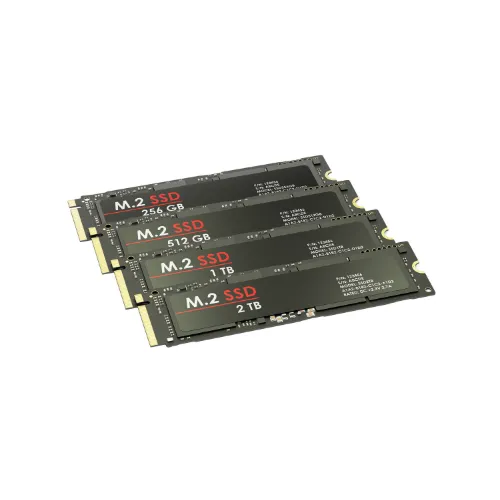
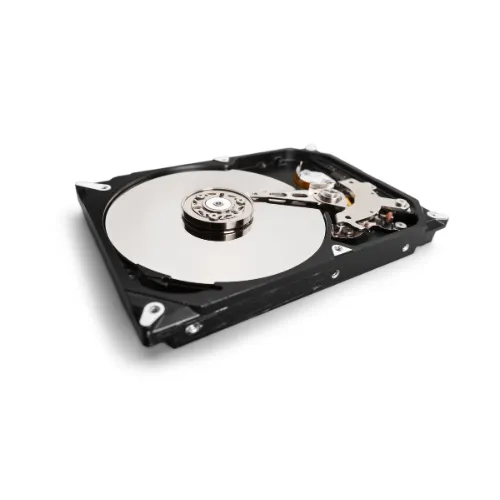
Hard Disk Drives (HDDs) use spinning magnetic platters to store data, similar to how old record players worked. A mechanical arm reads and writes data as the disk spins at 5,400 to 7,200 RPM. Solid State Drives (SSDs), on the other hand, use flash memory chips with no moving parts—like a supercharged USB stick. This fundamental difference affects everything from speed to durability to noise levels.
HDDs have been the standard for decades because they’re cheap to manufacture and offer large storage capacities. SSDs are newer technology that’s revolutionized computer performance, though they come at a higher cost per gigabyte. Think of HDDs as reliable workhorses and SSDs as performance race cars.
- In our South Granville Sydney repair shop, we see a third of customers still using HDDs in laptops from 2026
- The most common complaint we hear is from our customer are “Our Laptop, when we turn it on it takes a looong time to boot, can we upgrade it?”
- Last week, a customer brought in a 2010 laptop that took 15 minutes to boot—after upgrading to an SSD, it boots in 20 seconds
Speed Comparison: Boot Times, File Transfers, and Real-World Performance
The speed difference between SSDs and HDDs is dramatic. An SSD can boot Windows in 10-15 seconds, while an HDD typically takes 30-60 seconds or more. When opening large programs like Photoshop or loading a game, SSDs are 3-5 times faster. File transfers show similar improvements—copying a 20GB video file takes about 2 minutes on an SSD versus 8-10 minutes on an HDD.
For everyday tasks, the difference is immediately noticeable. Web browsers open instantly, documents load without delay, and your computer feels responsive instead of sluggish. If you frequently work with large files (video editing, graphic design, music production), an SSD can genuinely transform your workflow. Even basic users notice the difference when multitasking—switching between programs becomes seamless.
Here’s a quick comparison table:
| Task | HDD Speed | SSD Speed |
|---|---|---|
| Boot Windows 11 | 45-60 seconds | 10-15 seconds |
| Open Chrome (cold start) | 8-12 seconds | 1-2 seconds |
| Load 5GB game level | 30-45 seconds | 5-8 seconds |
| Transfer 50GB of files | 12-15 minutes | 2-3 minutes |
- “We recently upgraded a 2019 iMac for a graphic designer in Auburn. Their Photoshop launch time went from 20 seconds to 5 seconds…”
- “For gamers, we’ve found that CSGO and Valorant sees the biggest improvement…”
- “If you work from home in Sydney and join video calls, an SSD means your computer is ready when you are—no more ‘sorry, my laptop is still trying to boot up’ moments
Cost Analysis: Price Per GB and Total Upgrade Investment in 2026
Typical upgrade costs in Australia:
- DIY SSD upgrade: $150-$250 (drive only)
- Professional SSD upgrade: $200-$350 (parts + labor + data transfer)
- HDD replacement: $120-200 (parts + labor)
For most users, the performance boost justifies the extra $100-150 investment in an SSD. If you’re on a tight budget and need massive storage (4TB+), HDDs still make sense for secondary drives or backup storage.
- “In our South Granville shop, we charge $250 for a complete SSD upgrade including Data Transfer/Cloning service”
- “We recommend Crucial Brand SSD for most customers because They are cost effective and better in terms TBW and where it came from (micron)”
- “The sweet spot we’ve found is 500GB for Home Users because it balances cost and storage needs…”
- “For Sydney customers on a budget, we sometimes suggest 256GB SSD and 500GB or 1TB as secondary storage”
- “Avoid cheap SSD brand we’ve seen fail within 1 Year—spend the extra $100 on Crucial/Samsung SSDs”
- “Fresh Installation takes us about 1 hour to 2 hours for windows installation, and we always install the eseential software such as chrome/winrar/libre office and such”
Durability and Lifespan: Which Lasts Longer?
SSDs have no moving parts, making them significantly more durable than HDDs. Drop a laptop with an HDD while it’s running, and you risk catastrophic failure—the read/write head can crash into the spinning platter, destroying data permanently. SSDs can withstand drops, bumps, and vibration without issue, making them ideal for laptops that travel frequently.
Lifespan is more nuanced. HDDs typically last 3-5 years with regular use, though some survive much longer. They fail gradually—you might hear clicking noises or experience slow performance before complete failure. SSDs have a limited number of write cycles (measured in TBW – terabytes written), but for typical users, this means 5-10+ years of service. Modern SSDs include wear-leveling technology that distributes writes evenly across memory cells, extending lifespan.
The real-world takeaway: SSDs are more reliable for portable devices and users who move their computers frequently. HDDs work fine in desktop PCs that stay stationary but are vulnerable to physical shock.
The Verdict: When to Choose SSD vs. HDD (Decision Framework)
Description: Choose an SSD if you:
- Want maximum speed and responsiveness
- Use a laptop or move your computer regularly
- Boot your computer multiple times daily
- Run demanding software (video editing, gaming, CAD)
- Value your time over saving $50-100
- Need reliability for business-critical work
Choose an HDD if you:
- Need 4TB+ storage on a tight budget
- Store large media libraries (movies, raw video footage)
- Use the drive purely for backup/archival storage
- Have a desktop PC that never moves
- Are upgrading an older system (10+ years) where the bottleneck is elsewhere
The hybrid approach (best of both worlds): Many users benefit from combining both technologies—a smaller SSD (500GB-1TB) for your operating system and programs, plus a larger HDD (2TB-4TB) for photos, videos, and files. This gives you blazing-fast performance where it matters while keeping storage costs reasonable.
For most people upgrading in 2026, an SSD is the single best performance upgrade you can make—often more impactful than adding RAM or upgrading your processor. If your computer is more than 3 years old and still using an HDD, you’ll feel like you bought a new machine.